
Lots of organizations run their website on a small cloud server, and for good reason. Day to day, a membership group or small business site might see a handful of visitors a minute. Paying for a big server that sits idle 99% of the time doesn't make sense, so a small, inexpensive instance is often the right call.
Until the day you hit "send" on a big email.
We recently helped a client through exactly this. Here's what happened, what the logs actually showed, and the changes we made so their next big send goes smoothly.
The Scenario
The client's site runs on a small cloud instance sized for its normal traffic, and it handles that traffic without breaking a sweat. One morning they sent their annual meeting announcement to about 18,000 email addresses, with links to the homepage and several upcoming event pages.
Within minutes, the site slowed to a crawl. Some visitors waited a long time for pages to load, and others got an error page. About 15 minutes later, things recovered on their own.
The obvious assumption was "lots of people clicked the email at once." That's partly true, but it isn't the whole story.
What the Logs Showed
Before changing anything, we went to the data: server metrics, web server logs, and application logs.
Traffic jumped about 100x in a minute. Requests went from roughly 4 per minute to 400–500 per minute almost the moment the email went out. CPU hit 100%, and some pages took over 60 seconds to render.
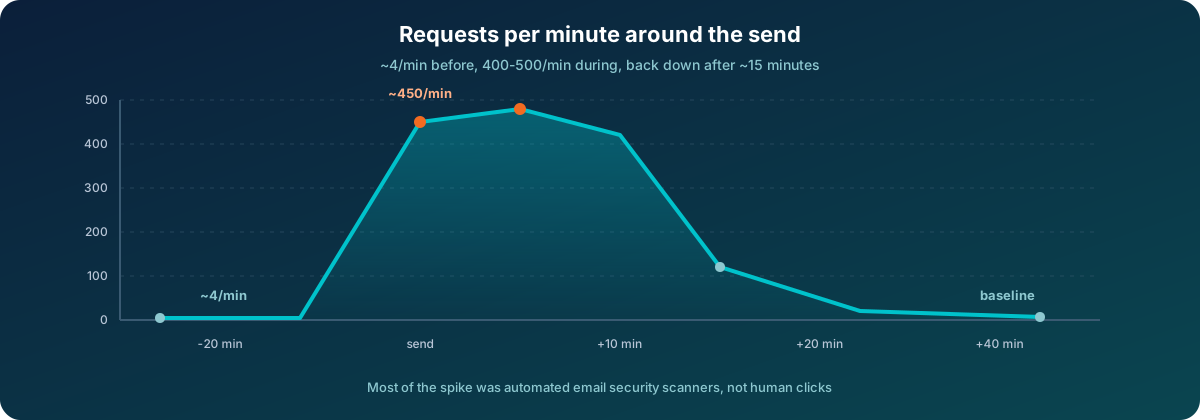
Most of the traffic wasn't people. That was the surprising part. Over the roughly 20-minute spike there were about 6,300 requests, and more than half came from automated email security scanners, not readers.
Many corporate email systems, such as Microsoft's Safe Links and similar products, automatically open every link in an incoming message to check it for malicious content before or as the recipient reads it. Send to 18,000 people at hundreds of organizations, and every one of those systems scans your links at once.
How we could tell they weren't humans:
- Superhuman speed. A single source would open all eight links in the newsletter within the same second, follow every redirect, then come back seconds later and do it again. No person clicks that way.
- Data-center origins. The heavy traffic came almost entirely from large cloud data centers, not from home or office internet connections. Some single network blocks had 20–30 different addresses hitting the site in the same pattern.
- Browser disguises. The scanners identified themselves as ordinary Chrome browsers on Windows and Mac, so a quick glance at the logs made it look like real visitors. A few even ran the site's analytics script.
Actual human visits, people clicking one to three links, were a much smaller share: likely a few hundred readers. The scanners multiplied that into thousands of requests packed into a few minutes.
The server had little headroom. Even before the spike, everyday load was already using most of the instance's capacity. When the burst arrived, there was nowhere for the extra work to go. The CPU pinned, response times climbed, and requests piled up until visitors gave up waiting.
It had happened before, just smaller. Looking back over the previous few weeks, the same "page took over 60 seconds" warnings appeared several times, always right around when emails went out. Those smaller sends never caused a full outage, so nobody noticed.
Why You Shouldn't Just Block the Scanners
It's tempting to block the scanner traffic, but it usually backfires. Email security systems that can't check your links may flag your message as suspicious, rewrite it with warnings, or route it to junk. Your newsletter's deliverability is worth more than the server resources the scanners use.
The better approach is to make your site able to absorb the burst cheaply.
What We Did
1. Put a cache in front of the pages people (and scanners) hit
The site was already behind Cloudflare, but its pages weren't being cached: every request, from a human or a scanner, went straight to the small server. We added a targeted cache rule for the homepage and the event pages linked in newsletters.
- Cloudflare now keeps a copy of those pages for 5 minutes and serves it directly, so the vast majority of burst requests never reach the server.
- Pages with query strings, logins, previews, and the rest of the site are excluded, so dynamic and member features behave exactly as before.
- Browsers aren't told to cache the pages, so when content is updated, visitors see the change as soon as the short cache window expires.
The trade-off is small and easy to explain to content editors: after an edit, the public might see the previous version for up to five minutes. If something has to go live immediately, the cache can be cleared on demand.
We verified the change right away. Repeat requests for those pages now come back as cache hits from Cloudflare instead of loading the origin server.
2. Gave the client simple sending guidance
A couple of small habits make a real difference:
- Send in batches. If your email platform supports it, spreading a large send over 30–60 minutes spreads out the scanner traffic too.
- Link to the exact final URL. Open the page in a browser and copy the address from the address bar. Links that trigger a redirect make every click (and every scan) hit the server twice.
Our Recommendation: Right-Size for the Event, Not Just the Average
A small instance is a perfectly reasonable, cost-effective choice for everyday traffic, and we're not suggesting anyone permanently pay for capacity they don't need. But predictable bursts like an annual meeting announcement, a fundraising appeal, or a registration deadline are a different situation.
Consider temporarily increasing the instance size around big sends. In the cloud, moving a server up a size or two usually takes only a few minutes of downtime, scheduled before the email goes out. Run on the larger size for the day of the send, then scale back down once traffic returns to normal. You pay a few extra dollars for a day of headroom instead of risking your most important communication of the year landing on an overloaded site.
Don't Forget the Basics: Memory and Tuning
This incident was a good reminder that hardware size is only half the picture. Even a modest server can handle a lot more when it's configured well:
- Check memory regularly, not just CPU. CPU spikes are easy to spot, but a server quietly running with almost no free memory is a problem waiting for a trigger.
- Make sure services fit the machine. Databases and application servers are often configured with defaults or older settings that assume far more RAM than the server has. When their combined memory settings exceed physical memory, performance falls apart under load.
- Revisit tuning when anything changes. After a resize, a migration, or a jump in traffic, settings that once made sense can quietly turn into bottlenecks.
- Watch for early warnings. Slow-page warnings in application logs are often the first sign of trouble, sometimes weeks before an actual outage.
The Takeaway
A small server can be the right choice for your site. Just plan for the moments when your audience, and every security scanner that guards their inbox, shows up at once. A short-lived cache in front of your most-linked pages, sensible sending practices, a well-tuned server, and an optional temporary size bump around big sends can turn a stressful outage into a non-event.
If your organization sends large emails and you're not sure your website can handle the response, get in touch. We're happy to review your setup before your next big send.
Comments