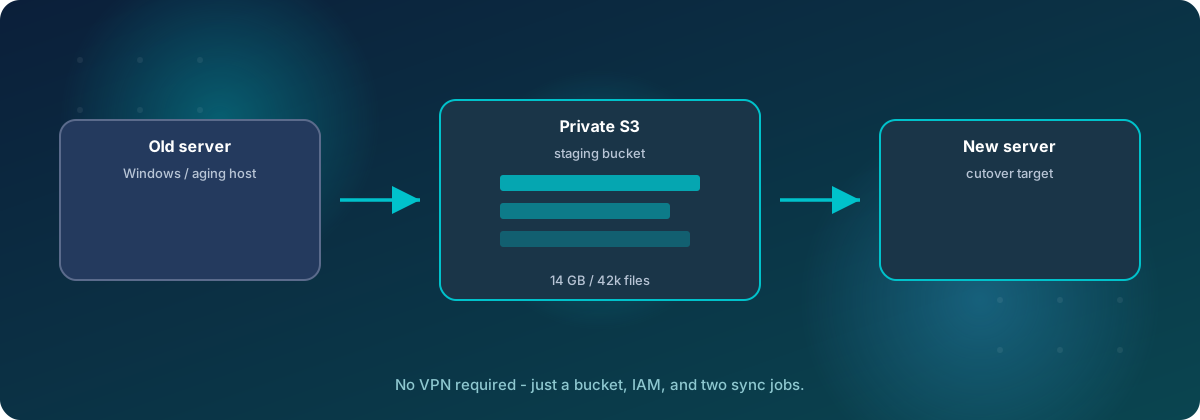
Moving 14 GB and 42,000 files off an aging Windows server did not need a VPN, an open firewall port, or a new product. It needed a private S3 bucket and two small jobs.
Every hosting migration has the same awkward middle. The code lives in Git, so it moves easily. The runtime data does not: uploads, generated reports, signature images, FTP drop folders, years of documents. That data sits on the old server, it has to land on the new one, and the two machines usually have no good way to talk to each other.
On a recent client move we solved this by putting an S3 bucket between them. The old server pushes into the bucket. The new server pulls out of it. Neither server ever connects to the other. This post explains how that works, where it is strong, where it hurts, and how it compares with the other ways people move files.
The pattern in one picture
The old server runs one command, aws s3 sync, which uploads over HTTPS. The new server runs a small script on a systemd timer that downloads whatever is new. S3 sits in the middle as a holding area.
What we actually moved
The data was spread across five source locations. Three small folders belonged inside the web root. Two large trees stayed outside it and went to a staging area on the new server until the application's file paths were sorted out. Sizes were measured on the old server before we started.
Why it works well
The strongest argument is what you do not have to set up. The rest follows from the fact that S3 is a durable, always-on middleman that both servers can reach on their own schedule.
Advantages
- The old server stays closed. It only needs outbound HTTPS. No open port, no VPN client, no new inbound firewall rule on a machine you are trying to retire.
- Upload and download are independent. The source can push at its own pace, and the destination can be offline, rebuilt or resized without breaking the transfer.
- It is restartable by default.
synconly copies what is missing or changed, so a dropped connection or a reboot costs minutes, not hours. - Credentials are small and disposable. One IAM user that can upload and list a single bucket, restricted to one source IP, deleted at cutover.
- Cutover deltas are cheap. Run the same command again and only files changed since the seed copy move.
- It is easy to audit. You can list the bucket, compare counts against what you measured on the source, and keep a log from every pull.
- Cost is negligible. Uploads into S3 are free, same-region transfer to EC2 is free, and a lifecycle rule removes the objects for you.
Disadvantages
- Every byte moves twice. A direct copy is one hop. This is two, so total elapsed time is longer unless the hops overlap.
- A long-lived key exists for a while. It is narrow and IP-locked, but it is still an access key sitting on the old server until you remove it.
- File metadata does not survive. Owners, ACLs and original modified times are not carried through, so you set ownership on arrival.
- Windows and Linux disagree on names. Windows paths are case-insensitive and S3 keys are not. Two files that differ only by case will collide on the way in.
- Deletes do not propagate unless you ask for it. Removed files linger in staging and on the destination until you run a supervised
--deletepass (see below). - Change detection is shallow.
synccompares size and modified time, not content. A same-size edit with an older timestamp can be skipped. - You need the AWS CLI on the source. Easy on Windows Server 2016, but it is one more thing to install and later remove.
The two hops overlap
The biggest objection is the double handling. In practice most of that cost disappears, because the pull job does not wait for the push to finish. The destination timer wakes every ten minutes, grabs whatever has arrived, and goes back to sleep. By the time the last file is uploaded, the new server is only one pull behind.
The scheduled pull job
The pull side is a short shell script and a systemd timer on the new server. You install it once and it runs on its own, so nobody has to log in and start a download. The timer starts five minutes after boot and then fires every ten minutes. Each run syncs a handful of bucket prefixes into their final folders, fixes ownership, and writes one line to a log.
#!/bin/bash
# Runs from a systemd timer every 10 minutes. Never deletes local files.
set -uo pipefail
B=s3://example-migration-bucket
W=/data/www/example.com
export AWS_DEFAULT_REGION=us-west-1
rc=0
pull() { aws s3 sync "$1" "$2" --only-show-errors || rc=1; }

pull $B/webroot/data/folder-a/  $W/data/folder-a/
pull $B/archive/                /data/migration/archive/

chown -R 999 $W/data/folder-a      # 999 = the app's service user
echo "$(date '+%F %T') rc=$rc folder-a=$(find $W/data/folder-a -type f | wc -l)" \
  >> /var/log/migration-pull.log
exit $rc
# migration-pull.timer
[Timer]
OnBootSec=5min
OnUnitActiveSec=10min
[Install]
WantedBy=timers.targetThree habits are worth copying. The script remembers a failure in rc but keeps going, so one bad prefix does not block the others. It logs a file count for every run, which lets you watch progress and compare against your source numbers at cutover. And both unit descriptions say TEMPORARY, so nobody finds a stray timer on a production server a year later and wonders what it is.
S3 only lists an object after its upload has fully finished, so a pull that fires in the middle of a large upload cannot grab half a file. It simply picks up what has arrived since the last pass.
This job never deletes anything. A plain sync only adds and updates files. If a file is removed or renamed on the old server after it was copied, the copy on the new server stays exactly where it is. That is the safe default for a migration, because a bug or a wrong path cannot erase data on the destination.
When you want it to delete too
Sometimes you want the new server to be an exact mirror of the old one. Add --delete and sync removes anything at the destination that no longer exists at the source.
--delete changes--delete the stale file survives on the server. With it, the destination matches the bucket exactly.Why you would want that
- Counts that match. At cutover you compare file counts against what you measured on the source. Leftover files make that check fail, and then you have to explain every difference by hand.
- No ghost files. Applications that list a folder will show a renamed or removed file as if it were current. A report that was replaced on the old server can reappear on the new one.
- Retention and privacy. If records were purged at the source on purpose, such as expired documents, they should not live on in the new environment.
- Disk and backups. A copy that only grows keeps paying for data nobody wants, and every snapshot carries it forward.
How to do it
A deletion has to travel through both hops, so there are two switches. On the old server, --delete on the push removes bucket objects that no longer exist locally. On the new server, --delete on the pull removes local files that are no longer in the bucket. The upload-only IAM user cannot delete objects, so the push side also needs a temporary s3:DeleteObject grant for that one run. Preview each step first with --dryrun, which lists every deletion without performing it.
# 1. Old server: preview, then mirror removals into the bucket
aws s3 sync C:\data\archive s3://example-migration-bucket/archive/ --delete --dryrun --profile migrate

# 2. New server: preview, then mirror the bucket to disk
aws s3 sync s3://example-migration-bucket/archive/ /data/migration/archive/ --delete --dryrun
aws s3 sync s3://example-migration-bucket/archive/ /data/migration/archive/ --delete
Treat --delete as a one-time, supervised step. Do not put it on the timer. Two mistakes cause most of the damage:
- A source folder that is empty or incomplete, from a wrong path or an unmounted drive, tells
syncto delete everything at the destination. - A folder the new server also writes to will lose those files, because they exist locally and not in the bucket. FTP drop folders and upload folders are the usual victims once the new system is live.
A safe routine is short. Take a snapshot of the volume first. Run the dry run and read the list of deletions. Use --exclude to protect any folder the new server writes to. Then run the real pass once, as part of the final cutover sync, and compare counts afterward.
How it compares with the usual options
None of these methods is wrong. They suit different situations, and the table shows where each one is strong and where it costs you something.
| Method | Inbound access to source | Resumes after a drop | Tooling on old server | Extra cost | Best for |
|---|---|---|---|---|---|
S3 staging with sync |
None | Yes | AWS CLI | Pennies | Locked-down or retiring servers, Windows to Linux, repeatable deltas |
| rsync over SSH | SSH reachable | Yes | rsync and SSH (not native on Windows) | None | Linux to Linux with a direct network path |
| SFTP or FTP | Port open | Client dependent | Server or client | None | Small one-off transfers, partner drops |
| Robocopy over VPN or SMB | VPN or SMB path | Yes | Built into Windows | VPN setup | Windows to Windows inside one network |
| AWS DataSync | None (agent pulls) | Yes | Agent VM near the source | Per-GB fee | Very large or ongoing transfers with verification |
Direct rsync or SFTP
One hop is faster than two, and rsync preserves permissions and timestamps. If both servers are Linux and can already reach each other, use it. Our source was Windows, rsync is not native there, and the owner of that box did not want an inbound path opened to it. Staging removed that conversation entirely.
Robocopy over a VPN
Robocopy is built in and handles interrupted copies well. It also wants a network path to the destination, which means a VPN or an SMB share reachable across the internet. That is real setup on both ends for a one-time job, and SMB exposed to the internet is a bad idea.
AWS DataSync
DataSync is the managed answer, with scheduling, verification and bandwidth controls built in. It also needs an agent running as a virtual machine close to the source, and it charges per gigabyte. For terabytes, or for a transfer that runs for months, that trade makes sense. For 14 GB and a Windows 2016 host with no hypervisor to spare, it was more machinery than the job deserved.
Guardrails we put around it
The pattern is only as safe as its permissions. These are the controls we apply, and they are cheap enough to copy every time.
- A dedicated IAM user with upload and list on one bucket, and nothing else.
- A condition that limits that user to the old server's outbound IP address.
- Public access blocked, server-side encryption on, and a bucket policy that rejects non-HTTPS requests.
- A lifecycle rule that expires objects 30 days after upload, so forgotten data cleans itself up.
- A read-only role on the destination, so the pull job cannot change the bucket.
- A pull script that never deletes locally and sets the correct owner on what it writes.
Create the access key by hand. We create the upload key in the console and paste it only into a named CLI profile on the old server. It never passes through a chat window, a ticket or a repository.
When I would pick something else
- Both servers are Linux and already share a network. Use rsync.
- You are moving terabytes, or need managed verification and reporting. Look at DataSync.
- Permissions and timestamps must be exact. Use rsync, or archive the tree first and move the archive.
- The data is a database. Use that database's own backup and restore tools, not a file copy.
The cutover checklist
The part people skip is the exit. A staging bucket should have a known end, and the same goes for the credentials around it.
- Freeze writes on the old server, then run the final
sync. - Wait for one more pull on the new server.
- If you need an exact mirror, run the supervised
--deletepass now, after a snapshot and a dry run. - Compare file counts per folder against the numbers you measured at the start.
- Disable the pull timer and remove the service, timer and script.
- Delete the upload IAM user and its key, the read policy on the instance role, and the bucket.
- Remove the CLI profile and the AWS CLI from the old server.
The short version
S3 staging is not the fastest way to move files, and it does not copy permissions for you. What it gives you is a transfer that needs no new network paths, survives interruptions, repeats cheaply at cutover and leaves almost nothing behind when you remove it. For the typical small-business migration off a legacy server, that is usually the better set of trade-offs.
If you have a server that needs to move and no clean way to move it, get in touch with Tierney Dynamics.
Comments