
It's common to find remote sessions left logged in and sitting idle. Nobody is actively working, but those sessions are still running processes and using memory and CPU the website needs. Some will argue that we should control access better so fewer people can leave sessions behind. Access control matters, and we tighten it where it fits, but each server has different needs for who must connect, how often, and for what. Stricter access alone won't replace the habit of signing out when you're done.
We see this with developers, internal staff, and clients alike. Nobody does it on purpose. Closing the Remote Desktop window feels like leaving, but it usually isn't. This post explains why it matters and what we ask of anyone who connects to a server we manage.
Closing the window is not logging out
When you close an RDP window or drop an SSH connection, the session often keeps running on the server. On Windows this is a disconnected session. Everything you had open stays open: browsers, database tools, editors, background helpers. The server keeps paying for all of it until someone signs the session out.
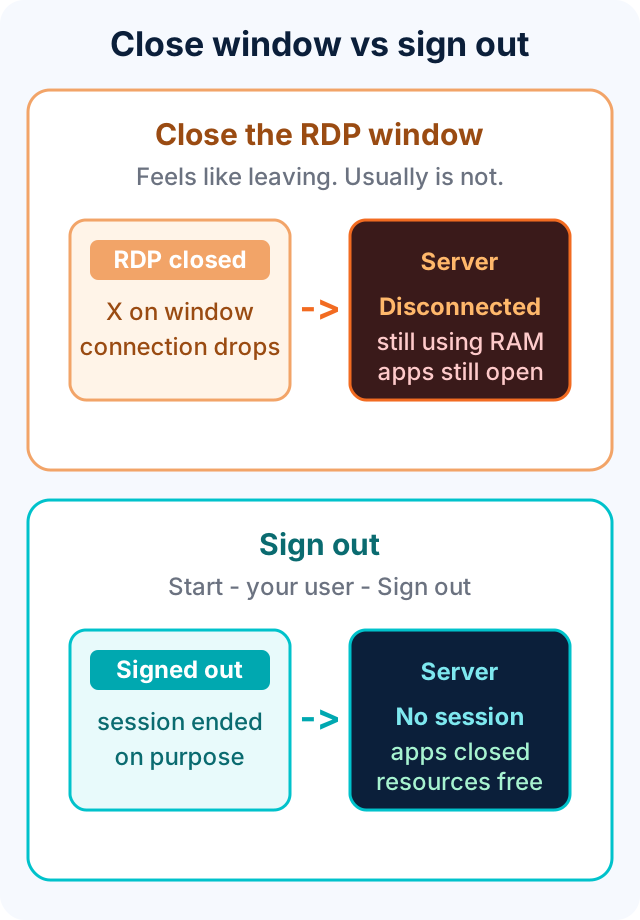
The habit we want is simple: when you're done, sign out. On Windows that means Start → your user → Sign out, not just closing the RDP window. On Linux it means exit or logout.
Why you should always log out
- Resources. Idle sessions hold RAM, CPU, and handles. A web server sized for its workload doesn't have room for several forgotten desktops, and the cost shows up as slow pages for the client's visitors.
- Security. A live session is an open door. Stolen credentials, an unattended workstation, or a hijacked session all do more damage when the session is already authenticated and logged in to databases and admin panels.
- Stale sessions block maintenance. Open files and running processes can hold locks that interfere with patching, backups, and restarts, and they can cause surprises after a reboot.
- Licensing and limits. Windows servers allow a limited number of simultaneous remote sessions. Forgotten sessions can lock out the person who needs to get in during an emergency.
Use your own workstation for browsers and database clients
The server's job is to run the application. Your workstation's job is to be a convenient place to work. Whenever you can, keep the tools on your side of the connection:
- Database clients. Connect SQL Server Management Studio, DBeaver, or your preferred client from your own machine through the VPN or an approved tunnel, rather than installing and running it on the server. You get your own settings, saved queries, and extensions, and the server isn't running a heavy GUI.
- Browsers. Test the website from your own browser. That is also a more accurate test, because it's what visitors experience, with real network latency and caching.
- Editors and tooling. Edit code locally, commit it, and deploy it. Don't leave editors and IDEs running on production.
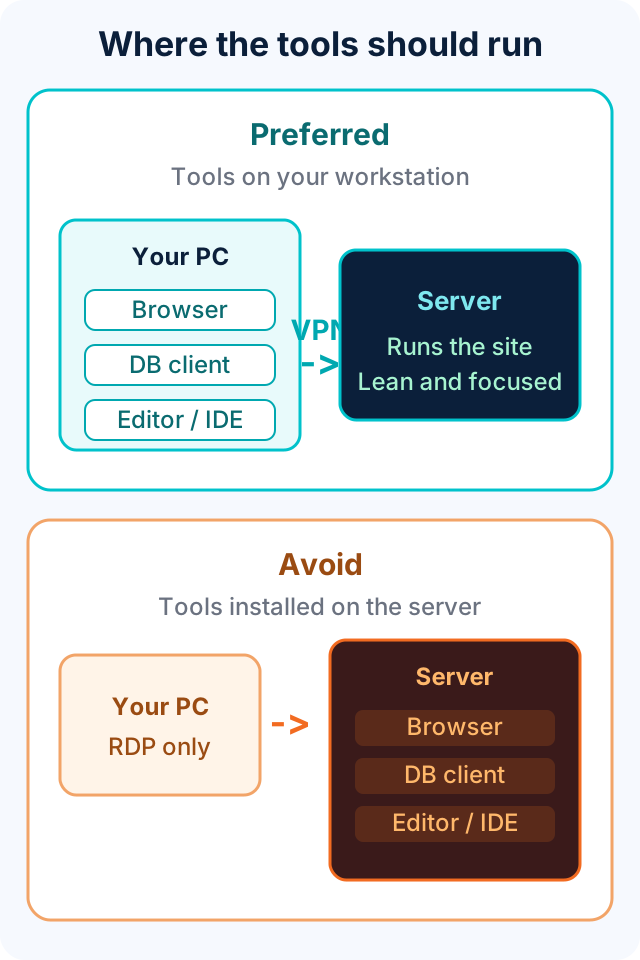
This also reduces risk. Every extra application on a server is more software to patch and more attack surface. Browsers are among the biggest: they run untrusted web code all day. A browser on a production server that is also logged in to databases and admin panels is exactly the kind of combination we want to avoid.
Minimize browser use on the server
Sometimes you do need a browser on the server, for example to hit localhost and confirm an application is responding, to read a vendor's admin console that only listens locally, or to download a patch. That's fine. Keep it short and purposeful:
- Open it, do the one thing, close it completely.
- Close tabs as you finish with them. Every open tab adds to the browser's memory footprint, and on a server that memory is shared with the website.
- Don't browse the web, check email, or sign in to personal accounts.
- Don't save passwords or sync profiles to a browser on a server.
- Don't download tools from random sites. Download on your workstation, verify, then transfer.
- Keep it patched, and remove extensions you don't need.
Text editors have the same problem: Notepad++ tabs
Notepad++ is a common text editor on Windows servers, and it has a habit similar to the browser problem. Closing the application does not close your tabs. By default it remembers every file you had open, and the next time it starts, whether it's you or someone else on that server, it reopens all of them and immediately takes up that memory again.
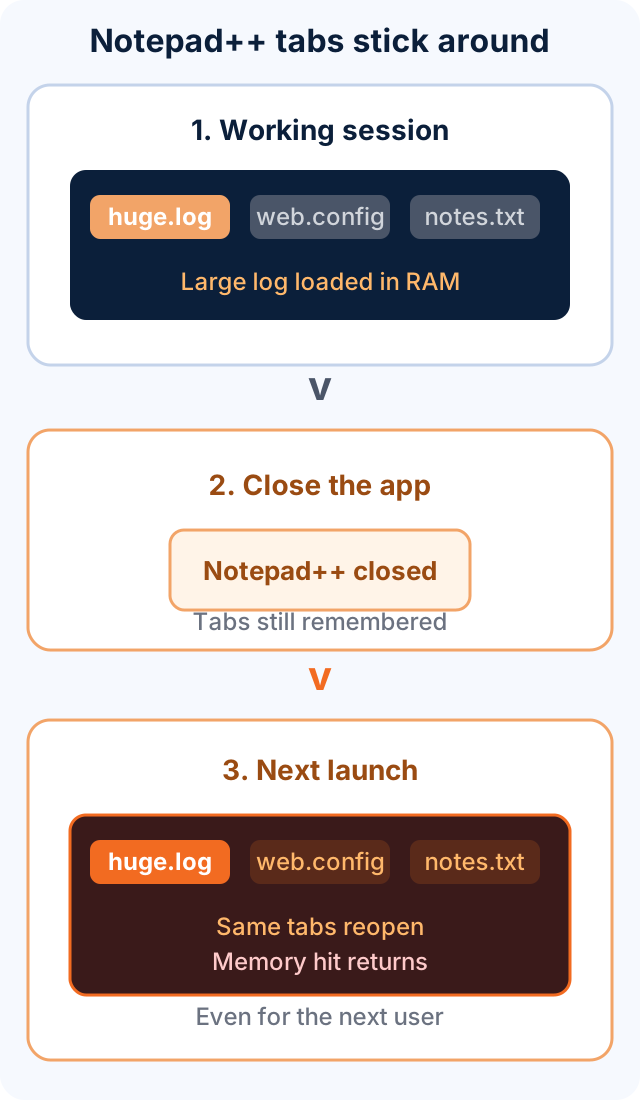
This matters most with long logs. A multi-hundred-megabyte log file is loaded into memory, and if it's left open in a tab, it comes back every time the program launches. A handful of forgotten log tabs can add up to a real resource footprint on a server that is supposed to be serving a website.
Keep the tabs cleaned up. Close each file when you're done with it, not just the program, and before you sign out, check that nothing large is left in the tab bar. Better still, for big logs, read and search them from your own workstation after copying them off, or use command-line tools such as Get-Content -Tail in PowerShell or tail and grep on Linux so that nothing stays open at all.
Chrome or Firefox on the server: pros and cons
If a browser has to be installed, which one? I use Chrome on my own desktop and like it. On a server, I prefer Firefox.
Chrome
- Pros: Familiar to almost everyone, excellent developer tools, frequent security updates, and easy centralized management through Group Policy and enterprise templates.
- Cons: On Windows, installing Chrome also installs Google's updater. Older machines show
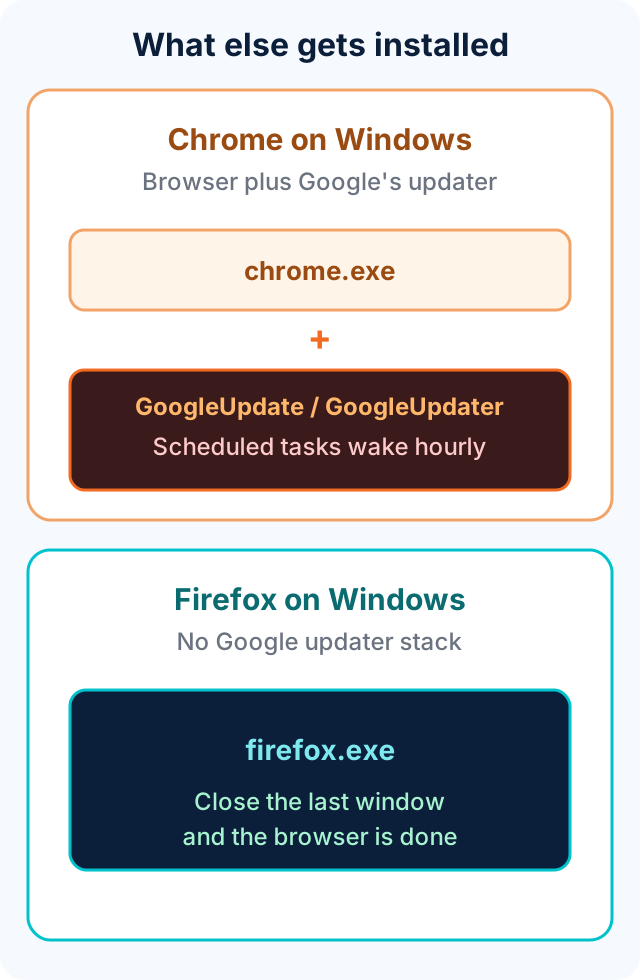
GoogleUpdate.exewith scheduled tasks such asGoogleUpdateTaskMachineCoreandGoogleUpdateTaskMachineUA. Newer installs useGoogleUpdater(updater.exe) with similar wake tasks. Those tasks fire on a schedule (often hourly), at logon, and at startup, whether or not anyone has a Chrome window open. On a production web server that means background updater processes and periodic work on a machine whose job is to serve a website. You can steer updates with enterprise policy, or push Chrome yourself, but either way the updater is another moving part to understand and monitor. Chrome also uses a multi-process model while it is open, which uses more memory than you might expect on a server that has none to spare.
Firefox
- Pros: When you close the last window, it exits. It does not bring Google's machine-wide updater stack with it. It's lighter on memory in typical use, has a more conservative default footprint, and has solid enterprise policy support through
policies.jsonand Group Policy. A server only needs a browser occasionally, and a browser that goes away when you close it fits that. - Cons: A few vendor consoles and internal tools are only tested against Chrome. Some people find it unfamiliar if they live in Chrome all day. Its enterprise tooling is good but less widely known than Chrome's, so it takes a little configuration the first time.
My choice: Firefox on servers, Chrome on my desktop. The browser itself isn't the point. The point is that a closed browser should be a finished browser, and that installing a browser on production should not quietly add background updater work you did not plan for. If you do install Chrome on a server, check Task Scheduler for Google Update / GoogleUpdater tasks, decide how updates will be handled, and confirm you know which background processes belong there.
Can we log idle users out automatically?
Yes. There is a policy for this, and it's worth knowing about. On Windows servers, Group Policy (under Remote Desktop Session Host → Session Time Limits) can end sessions that have been idle or disconnected for a set amount of time. On Linux, shell timeouts and SSH keepalive settings can do something similar.
The catch is that auto-logoff risks losing work. When a session is ended, everything in it is closed. That includes an unsaved file, a script that was mid-run, a database query or transaction in progress, or a long-running export. A developer who steps away for lunch might come back to find their work gone.
If we turn this on, we'd do it thoughtfully:
- Use a generous idle limit rather than a short one.
- Prefer ending disconnected sessions over active ones.
- Tell everyone before it goes live, so no one is surprised.
- Run anything long on the server as a scheduled job or service, not inside a logged-in session.
We would rather people build the habit than rely on a timer, but the policy is a reasonable safety net.
Our ask
- Sign out when you're done. Don't just close the window.
- Use your own workstation for browsers, database clients, and editors.
- If you must open a browser on the server, keep it brief and close it fully.
- Save your work before you step away, and don't leave long-running work in an interactive session.
These habits keep sites fast, keep servers easier to patch, and shrink the number of ways things can go wrong. If you have questions about how to connect to your server, or you need a tunnel or VPN set up so you can work from your own machine, contact us.
Tierney Dynamics provides hosting, programming, and sysadmin services.
Comments