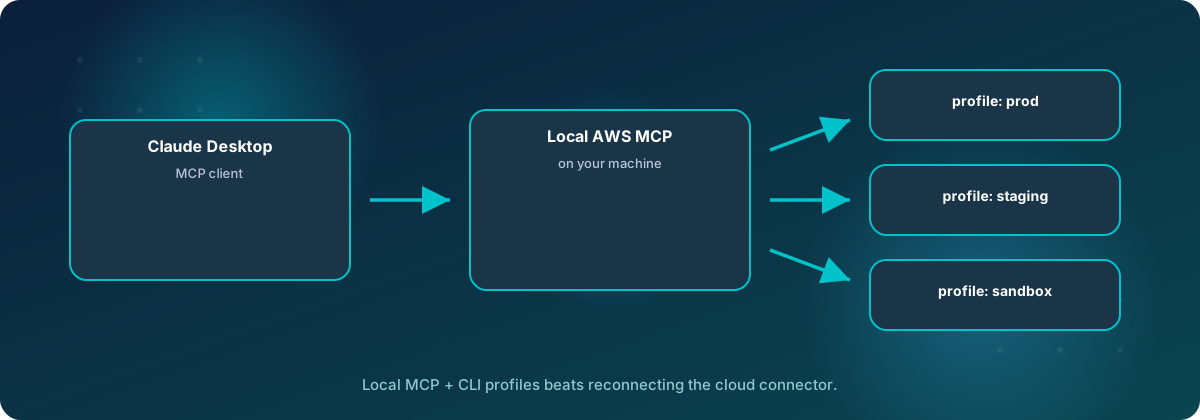
We use the AWS MCP Server from the main Claude chat almost every day. It lets Claude read documentation, run AWS CLI commands and work through multi-step tasks in our accounts. The problem was switching accounts. The connector was signed in to one AWS account at a time, so moving from one client to another meant disconnecting, signing in again and reconnecting. Several times a day, that adds up.
The fix was to stop using the remote connection and run the AWS MCP Server locally through Claude Desktop. The local version reads the named profiles we already have in the AWS CLI, so one server can reach every account, and each Claude project says which profile it should use. This post walks through the whole setup: installing the toolkit, adding the server to Claude Desktop, creating the CLI profiles, and pinning each project to the right account. The same approach works in Cursor, which is covered near the end.
Step 1: Install the Agent Toolkit for AWS
AWS packages the MCP Server, its curated skills and a recommended rules file as the Agent Toolkit for AWS. It replaces the older AWS Labs MCP servers, and it adds IAM condition keys and CloudWatch and CloudTrail logging for everything an agent does. The toolkit costs nothing extra. You pay only for the AWS resources your agent creates or uses.
The local server is a small program called mcp-proxy-for-aws. It runs on your machine, signs each request with your own AWS credentials, and forwards it to the AWS-managed MCP endpoint. It needs the AWS CLI and uv on your machine, and the toolkit installer sets up the rest.
Holds your named profiles and runs the toolkit installer. Check with aws --version.
Python tool runner. Its uvx command downloads and starts the proxy for you.
Detects your agents, installs skills and configures the MCP Server in one command.
Install or update the AWS CLI
The toolkit installer needs AWS CLI version 2.35 or later. If aws --version shows something older, or the command is missing, install the current version. On Windows the MSI installer upgrades an existing copy in place.
# Windows
msiexec.exe /i https://awscli.amazonaws.com/AWSCLIV2.msi

# Confirm the version afterward (open a new terminal first)
aws --version
On macOS, download and run the AWSCLIV2.pkg installer from the AWS CLI install guide.
Install uv
The proxy is a Python package, and uvx runs it in its own isolated environment, so you do not have to manage Python yourself.
# Windows (PowerShell)
powershell -ExecutionPolicy ByPass -c "irm https://astral.sh/uv/install.ps1 | iex"

# macOS
curl -LsSf https://astral.sh/uv/install.sh | sh
Open a new terminal and run uvx --version to confirm it is on your path. The first time the proxy starts, uvx downloads its dependencies, which can take tens of seconds. After that it starts in a few seconds.
Run the toolkit installer
AWS's one-command setup finds the coding agents on your machine, installs the skills and writes the MCP Server configuration:
aws configure agent-toolkitThat command targets coding agents such as Claude Code and Codex. In Claude Code itself you can also install the plugin with /plugin install aws-core@claude-plugins-official. The main Claude chat in Claude Desktop is a different app with its own config file, and that file is where the multi-account setup happens, so the next step edits it by hand.
Step 2: Add the server to Claude Desktop
Local MCP servers in Claude Desktop all come from one file, claude_desktop_config.json. The easiest way to open it is from Claude Desktop: Settings → Developer → Edit Config. If you would rather find it yourself, these are the usual locations:
- Windows:
%APPDATA%\Claude\claude_desktop_config.json - macOS:
~/Library/Application Support/Claude/claude_desktop_config.json
Some Windows installs, such as the Microsoft Store version, keep the file inside a package folder under %LOCALAPPDATA%\Packages instead. If it is not where you expect, this PowerShell command searches for it:
Get-ChildItem "$env:LOCALAPPDATA\Packages" -Recurse -Filter claude_desktop_config.json -ErrorAction SilentlyContinueAdd an aws-mcp entry inside the mcpServers block. If the file already defines other servers, add this one next to them rather than replacing the block.
{
  "mcpServers": {
    "aws-mcp": {
      "command": "uvx",
      "args": [
        "mcp-proxy-for-aws",
        "https://aws-mcp.us-east-1.api.aws/mcp",
        "--profile", "no-access", "client-a", "client-b", "personal",
        "--metadata", "AWS_REGION=us-east-1",
        "--skip-auth"
      ]
    }
  }
}uvx runs. AWS recommends pinning a tested version for repeatable behavior, for example mcp-proxy-for-aws@1.6.4.us-east-1 or us-west-2 (Oregon). The endpoint only sets where the server runs, and either one can work in any commercial region.--profile, with several names, and --skip-auth, so the server starts cleanly without needing an account.Why a project-level .mcp.json will not work here. A .mcp.json file in a project folder is read only by Claude Code. The main Claude chat ignores it, so you cannot give each Claude Desktop project its own copy of the server. Instead, you register every profile once in the global config and let each project choose one per call, as described in Step 4.
Restart Claude Desktop completely after every edit. Closing the window or quitting from the taskbar leaves it running in the background, and it will keep using the old config. On Windows, right-click the Claude icon in the system tray and choose Quit. On macOS, use Claude → Quit. When it starts again, aws-mcp should appear in the list of connectors and tools.
Step 3: Create a profile for each account in the AWS CLI
A profile is a named set of credentials and settings in the AWS CLI's config files, ~/.aws/config and ~/.aws/credentials. On Windows, ~ is your user folder, for example C:\Users\you\.aws. The proxy uses the same files, so any profile that works with aws ... --profile name also works for Claude. Use whichever sign-in method each account supports.
IAM Identity Center (recommended)
If your accounts sit in an AWS Organization with IAM Identity Center, this is the cleanest choice. You get short-lived credentials and no access keys on disk. Run the wizard once per account and role:
aws configure sso --profile client-aIt asks for a session name, your access portal start URL and its region, then opens a browser so you can sign in and choose an account and role. The result in ~/.aws/config looks like this. Profiles for other accounts in the same organization reuse the same sso-session block.
[sso-session tierney]
sso_start_url = https://d-1234567890.awsapps.com/start
sso_region = us-east-1
sso_registration_scopes = sso:account:access

[profile client-a]
sso_session = tierney
sso_account_id = 111111111111
sso_role_name = PowerUserAccess
region = us-east-1

[profile client-b]
sso_session = tierney
sso_account_id = 222222222222
sso_role_name = ReadOnlyAccess
region = us-west-2
Sessions expire, usually after 8 to 12 hours. Sign in again with aws sso login --sso-session tierney, which refreshes every profile that shares the session at once.
Console sign-in with aws login
For an account you normally reach through the AWS Management Console, recent CLI versions can reuse that browser sign-in and fetch short-term credentials:
aws login --profile personal
aws configure set region us-east-1 --profile personal
Set a region on these profiles. Without one, calls can fail with NoRegionError, which Claude reports only as a vague "Invalid request parameters" error.
Access keys (last resort)
Some accounts only give you an IAM user. aws configure --profile name stores the key in ~/.aws/credentials. Keep that user's permissions as narrow as the work allows, and rotate the key.
The default profile that cannot do anything
This is the profile that goes first in --profile, and it is the most important one. Any call that leaves out aws_profile uses the first profile. If that profile is a real client account, a forgotten parameter quietly runs the command against the wrong client. So make the default a profile that has no permissions at all.
In an account you control, create an IAM user with no policies attached, create an access key for it, and store that key in a profile named no-access:
aws configure --profile no-accessNow a call with no profile reaches AWS, is recognized, and is refused with AccessDenied. Nothing changes in any account, and the error makes the mistake obvious.
Check every profile before Claude uses it
aws configure list-profiles
aws sts get-caller-identity --profile client-a
aws sts get-caller-identity --profile no-access
Each get-caller-identity call should return the account number you expect. If one fails here, it will fail in Claude too. Fix it in the terminal first.
Step 4: Tell each project which profile to use
With every profile registered, the proxy adds an optional aws_profile parameter to each tool that needs credentials. Claude decides what to pass, so the last piece is telling Claude, per project, which profile belongs to that work. Claude Desktop projects have a project instructions field that applies to every chat in the project, and that is the right place for it.
Open the project in Claude Desktop, choose the option to set project instructions, and add a short block like this one. Repeat for each project with its own profile name.
AWS access for this project
- This project is for Client A, AWS account 111111111111.
- On every aws-mcp tool call that accepts aws_profile, pass aws_profile="client-a".
- Never use any other profile, and never leave aws_profile out.
- Default region: us-east-1.
- Before the first change in a chat, confirm the account with sts get-caller-identity.
- If a call returns AccessDenied, stop and tell me. Do not retry with another profile.Pass aws_profile="client-a" on every aws-mcp call.
Region us-east-1.
Pass aws_profile="client-b" on every aws-mcp call.
Region us-west-2.
Three habits make this dependable:
- Name the account number as well as the profile. When Claude confirms the account with
get-caller-identity, it can compare the result with the number in the instructions and catch a mismatch. - Keep chats about AWS inside a project. A chat started outside any project has no instructions, so its calls fall back to
no-access. That is safe, but it will not get any work done. - Add new profiles in both places. Create the profile in the CLI, add its name to
--profilein the config, then fully restart Claude Desktop.
If you also use Claude Code
Claude Code does read a project's .mcp.json, so there you can skip the per-call parameter and lock a whole project folder to one profile with an environment variable:
{
  "mcpServers": {
    "aws-client-a": {
      "command": "uvx",
      "args": [
        "mcp-proxy-for-aws",
        "https://aws-mcp.us-east-1.api.aws/mcp",
        "--metadata", "AWS_REGION=us-east-1"
      ],
      "env": { "AWS_PROFILE": "client-a" }
    }
  }
}
Give the project-level server a different name from the global aws-mcp entry, or remove the global one, so Claude does not see two copies of the same tools. We have not confirmed whether Claude Cowork projects read .mcp.json, so test that before relying on it.
Using the same setup in Cursor
Cursor runs local MCP servers too, and it reads the same ~/.aws profiles, so the work from Step 3 carries over unchanged. The Agent Toolkit also ships a Cursor plugin that bundles the server and skills. To reach several accounts from one server, though, you configure the server yourself, the same way as in Claude Desktop.
Add the server globally
Cursor's global MCP file is ~/.cursor/mcp.json, which on Windows is %USERPROFILE%\.cursor\mcp.json. You can also reach it from Cursor Settings → Tools & MCP. The entry is the same one you added to Claude Desktop:
{
  "mcpServers": {
    "aws-mcp": {
      "command": "uvx",
      "args": [
        "mcp-proxy-for-aws",
        "https://aws-mcp.us-east-1.api.aws/mcp",
        "--profile", "no-access", "client-a", "client-b", "personal",
        "--metadata", "AWS_REGION=us-east-1",
        "--skip-auth"
      ]
    }
  }
}
After saving, check that aws-mcp shows a green status in Tools & MCP. If it does not pick up a change, switch the server off and on there, or reload the Cursor window.
Pin each project to a profile
Cursor gives you both options from earlier, and you can use either one per project.
Option 1: a project rule. Keep the single global server and tell the agent which aws_profile to pass, just like Claude Desktop's project instructions. Create .cursor/rules/aws.mdc in the project folder. Setting alwaysApply: true loads it into every chat in that workspace:
---
description: AWS account and profile for this project
alwaysApply: true
---

# AWS access for this project
- This project is for Client A, AWS account 111111111111.
- On every aws-mcp tool call that accepts aws_profile, pass aws_profile="client-a".
- Never use any other profile, and never leave aws_profile out.
- Default region: us-east-1.
- Before the first change in a chat, confirm the account with sts get-caller-identity.
- If a call returns AccessDenied, stop and tell me. Do not retry with another profile.
Cursor also reads an AGENTS.md file at the project root, so the same block can go there if you prefer one plain file that other agents read too.
Option 2: a project-level server. Like Claude Code, Cursor reads a project's own MCP file, at .cursor/mcp.json. A server defined there with AWS_PROFILE is locked to one account, and the agent never has to choose:
{
  "mcpServers": {
    "aws-client-a": {
      "command": "uvx",
      "args": [
        "mcp-proxy-for-aws",
        "https://aws-mcp.us-east-1.api.aws/mcp",
        "--metadata", "AWS_REGION=us-east-1"
      ],
      "env": { "AWS_PROFILE": "client-a" }
    }
  }
}
As with Claude Code, use a name other than aws-mcp, and switch the global server off for that workspace in Tools & MCP so the agent sees only the locked copy.
Before committing these files, remember that profile names live on each person's machine. If teammates use different names for the same account, a committed rule or .cursor/mcp.json will point them at a profile they do not have. Agree on shared names, or keep these files out of Git.
| Where it goes | Claude Desktop | Claude Code | Cursor |
|---|---|---|---|
| Global server with every profile | claude_desktop_config.json |
~/.claude.json (user scope) |
~/.cursor/mcp.json |
| Server locked to one profile | Not supported | .mcp.json |
.cursor/mcp.json |
Which aws_profile to pass |
Project instructions | CLAUDE.md |
.cursor/rules/aws.mdc or AGENTS.md |
Guardrails worth adding
Project instructions guide Claude. They do not enforce anything. The real limits should come from AWS itself:
- Give each profile only the role the work needs. A read-only role for an account you are only investigating is the strongest protection there is.
- Use the agent condition keys. Requests through the AWS MCP Server carry the
aws:ViaAWSMCPServiceandaws:CalledViaAWSMCPkeys. IAM policies and SCPs can use them to keep agent calls read-only in production, even when the same role can make changes from the console. - Consider
--read-only. Adding it to the proxy's arguments hides every tool that may need write permissions, which is a sensible default on a machine that touches client production accounts. - Watch the logs. Every request through the server is recorded in CloudTrail and CloudWatch, so you can review what Claude did in each account.
The short version
Install the AWS CLI 2.35+ and uv, add mcp-proxy-for-aws to claude_desktop_config.json with every profile listed after --profile and a permissionless profile first, then give each Claude project one line saying which aws_profile to pass. Switching AWS accounts becomes a matter of opening the right project, and a forgotten parameter fails safely instead of landing in the wrong client's account. In Cursor, the same server goes in ~/.cursor/mcp.json, and a rule file in each project names the profile.
If you want help setting up AI agents safely across your AWS accounts, get in touch with Tierney Dynamics.
Comments